Up to 60% | code: GOLDENHOME ⭐0d : 00h : 00m : 00s
Up to 60% | code: GOLDENHOME ⭐ 4d : 13h : 16m : 31s
Article
Restoring old photos with AI: a family archive ready to print, and a remembrance gallery
•10 minutes reading
How to restore an old photo with AI before printing: photograph the print with a phone, ready instructions for the editor, how much to change, which frame size to choose, and how to arrange a remembrance gallery before 1 November.
Short answer: Photograph an old print with your phone by a window, in diffused daylight, holding the phone parallel to the photo. Upload the file to a Framky project, choose “Edit with AI”, and type one specific instruction, for example “Refresh the old photo: remove scratches, stains and the crease, do not change the faces”. Compare the preview with the original, and only then create a final version for print. From a phone photo of a 9 × 13 cm print you can safely print up to 30 × 40 cm. With 4–6 photos like that you can arrange a calm remembrance gallery on a sideboard or a wall.
A wedding photo of your grandparents, grandma with mum in her arms, a great-grandfather in uniform. Prints like that usually sit in an album or a shoebox. They are faded, scratched, creased, and covered with a yellow bloom. It is a shame to hang them like that, and a greater shame to keep them where nobody looks at them.
Before 1 November many families come back to these photos. It is a good moment to digitise them, refresh them gently, and hang them where they will be seen every day. This article leads you step by step: from photographing the print, through instructions in the AI photo editor, to the choice of frame size and the layout of a remembrance gallery.
How to digitise an old print with a phone
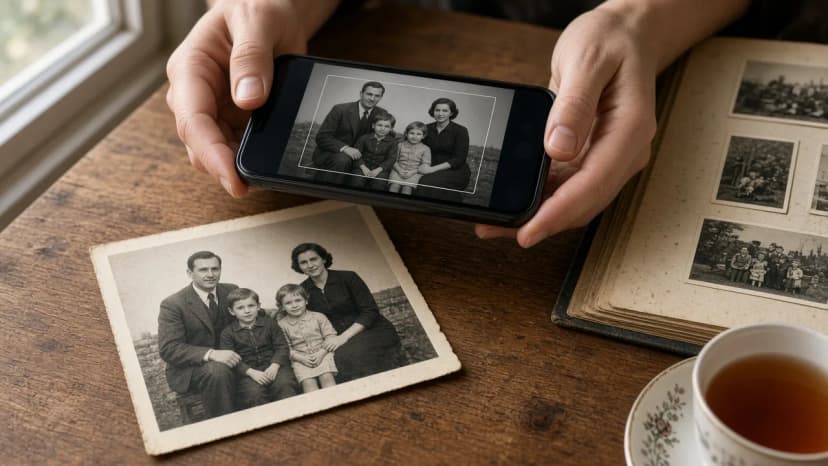
A flatbed scanner gives the best result, but not everyone has one. A phone is enough if you take care of the light and the angle. Five rules:
Daylight from the side, no sun. Lay the photo on a table by a window on a cloudy day, or in the shade. Direct sun and a ceiling lamp throw reflections, especially on glossy prints.
Turn the flash off. The flash leaves a bright spot in the middle of the photo. The AI cannot rebuild what is under it, because there is no information there.
Hold the phone parallel to the photo. Keep it directly above the print, not at an angle. Otherwise the rectangle becomes a trapezoid and the faces distort. The camera grid helps.
Keep the photo flat. Press curled prints at the edges with a clean sheet of glass, or leave them under books for a day. Do not force photos that are stuck to an album. Photograph them on the page.
No digital zoom. Move closer, so the print fills almost the whole frame. Digital zoom only enlarges the pixels. Take 2–3 shots and keep the sharpest one.
Diffused light from the window, the phone parallel to the print, no flash
If the photo matters to the whole family, make a copy of the file as soon as you have digitised it, for example in a shared album. Put the original print in an envelope, in a dry place. From then on you work only on the file.
A refresh in one instruction: example instructions
In the Framky AI editor you describe the change in your own words. Among the ready ideas for a style there is also a refresh of an old photo, which you can start from. You open the editor with “Edit with AI” next to a photo uploaded to the project. You need an account, and edits use credits. You see the cost of each action before you run it.
Instructions that work on old prints:
Problem
Instruction
Scratches, dust, white specks
Remove scratches, dust and specks, do not change the faces
A crease or a crack
Remove the crease running through the top right corner of the photo
A faded, grey photo
Improve the contrast and the depth of the blacks, leave the photo black and white
A yellow bloom
Remove the yellow bloom, keep a gentle sepia tone
Soft faces
Gently sharpen the faces, keep their features and their age
Everything at once
Refresh the old photo: remove scratches, stains and creases, improve the contrast, do not change the faces
Three rules that save credits:
One change at a time on a difficult photo. Scratches and creases first, then contrast. Each next change is made from the previous version.
Always say what should stay. “Do not change the faces” or “keep the features and the age” is the most important part of the instruction for photos of people close to you.
Preview first. This usually takes about 10 seconds. You create the final version, in full resolution for print, only when the preview suits you.
If the photo shows older people and you only want to smooth the skin, also read the article on portrait retouch without a “plastic” look. With old photos it is usually better not to touch the wrinkles at all.
How much to correct so it stays authentic
A restored photo should look like a well-kept print, not like a new photo taken today. A simple split:
Correct freely
Leave unchanged
Scratches, dust, stains, creases, cracks
The features of the face, the shape of the eyes and the mouth
Faded contrast, a yellow bloom
The wrinkles and grey hair of grandparents
Missing pieces at the edges of the print
Clothes, hairstyles and the background of the period
Slightly soft outlines
Film grain, black and white, or sepia
After each edit, compare the version with the original on the before-and-after slider. The labels are “Original” and “Edited”. Zoom in on the faces. If someone looks younger, smiles differently, or has a different face shape, go back to the previous version. Every version stays on the list, so the original is never lost.
A good test before print: show the final version to someone in the family who remembers these people. If they recognise them at once and do not notice that the photo was edited, the result is right.
Colourising is a separate decision. Black-and-white and sepia photos usually sit together better in one gallery. If you want a colour version, treat it as an extra, and choose for the frame the one the family finds closer to the truth.
Print size and scan quality
Old prints are small, often 6 × 9 cm or 9 × 13 cm. AI will remove scratches, but it will not add detail that was never on the print. So choose the frame size to fit the file, not the other way round.
Source
Approximate file size
Safe size in a frame
A 9 × 13 cm print, a 12 MP phone photo
about 2500 × 3600 px
up to 30 × 40 cm
A 9 × 13 cm print, a 600 DPI scan
about 2100 × 3100 px
up to 30 × 40 cm
A 9 × 13 cm print, a 1200 DPI scan
about 4250 × 6150 px
up to 40 × 50 cm
A 6 × 9 cm print, a 1200 DPI scan
about 2850 × 4250 px
up to 30 × 40 cm
The file size of a scan is simple arithmetic: the print size in inches times the scanner DPI. For a phone photo we assume the print fills about 90% of the frame. The general rule: do not enlarge an old print more than 3–4 times. A remembrance gallery is viewed from close up, often from 50 cm to 1 m, and from that distance you see more than with a gallery above a sofa. Tables of distance and resolution are in how much DPI you need for photo printing.
In practice that means one photo in a 30 × 40 cm frame is the centre of a remembrance gallery, and the others are smaller. That is not a flaw. It is a natural hierarchy.
A remembrance gallery: layout and captions
A remembrance gallery does not have to be large. On a sideboard, in an entryway, or above a small table in the living room, 4–6 photos are enough.
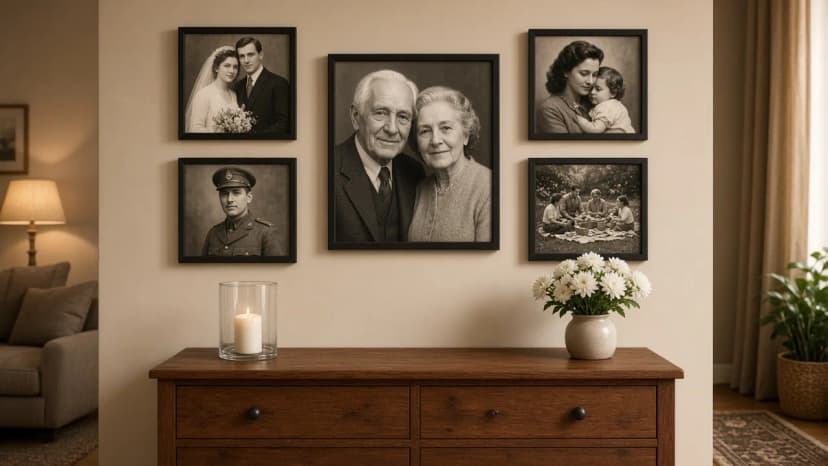
Five frames: a larger portrait in the centre, smaller photos from different years around it
Layout. Symmetry works: one larger portrait in the centre, two smaller photos on each side. Hang the centre of the gallery at about 145–155 cm from the floor, and above a sideboard the lower edge of the frames 20–25 cm above the top. The gallery should be about two thirds of the width of the furniture. With a 120 cm sideboard, that is about 80 cm.
Choosing the photos. One thread works best: two grandparents and their story, one branch of the family, or several generations from the oldest photo to the youngest. What a gallery across generations looks like in practice is shown in Megan’s heritage gallery, with photos from 1889 to 2005 in one consistent setting.
Consistency. Matching frames hold photos from different decades together. One tone helps too: all the photos black and white, or all in sepia. Even if you combine those two tones in one gallery, refresh them with the same instruction so the contrast is similar.
Captions. Write names and dates in pencil on the back of the print, or on a slip of paper at the back of the frame. In a dozen years that will be the most valuable information for the grandchildren. If you want guests to know who they are looking at, put a small card on the sideboard with the names and years, in the same order as the photos.
Candles. If you place a candle under the gallery, choose a cloche or an LED candle, and keep it at least 30 cm from the frames.
Choose 4–6 photos and photograph them with a phone by a window, or scan them.
Upload the files and choose a layout in the photo gallery wall. Put the largest photo in the central frame.
Next to each photo, choose “Edit with AI”, type an instruction from the table, and check the preview on the before-and-after slider. The labels are “Original” and “Edited”.
Create the final version and choose “Use in frame”. The editor can show “Show frame proportions”, so you see at once whether anyone will be cropped.
Place the order. The set arrives ready to hang, with a 1:1 paper template and self-adhesive hangers. If the gallery is to hang before 1 November, check the delivery date when you place the order.
Keywords
restoring old photosai restoration of old photosrefresh an old photohow to digitise old photos with a phoneold family photos in framesremembrance galleryphotos of grandparents on the wallai photo editorphoto gallery wall
Framky Club
Claim a special discount on your first order
Sign up and we'll send you a code with a bigger discount than the shop offers — plus occasional inspiration for your photo gallery wall.
Photos from different phones and years do not match on the wall? See how to give them one style in the Framky AI editor: an analogue-film look, golden hour, or watercolour, with ready instructions.
Someone blinked in a group photo? Open their eyes with one instruction in the Framky AI editor, check the result before print, and make that photo the centre of a family gallery in a 50 × 70 cm frame.
How to smooth wrinkles and blur the background in a portrait of a grandmother, grandfather or parents so the face stays itself. Ready instructions for the Framky AI editor, three levels of retouch, and a portrait in a frame as a gift.