Up to 50% | code: GOLDENHOME ⭐0d : 00h : 00m : 00s
Up to 50% | code: GOLDENHOME ⭐ 6d : 09h : 10m : 19s
Article
AI portrait retouch: gently smooth wrinkles and blur the background without a plastic look
•9 minutes reading
How to smooth wrinkles and blur the background in a portrait of a grandmother, grandfather or parents so the face stays itself. Ready instructions for the Framky AI editor, three levels of retouch, and a portrait in a frame as a gift.
Short answer: To smooth wrinkles in a portrait without a “plastic” look, open the photo in the Framky AI editor with “Edit with AI” and type a gentle instruction, for example “Gently smooth wrinkles on the face, keep the natural skin texture, the shape of the eyes and the mouth”. You blur the background with a separate instruction: “Blur the background, the person in the foreground should stay sharp”. Compare each version with the original on a before-and-after slider. The labels are “Original” and “Edited”. If the effect is too strong, go back to the original and write a weaker instruction, instead of fixing the edited version.
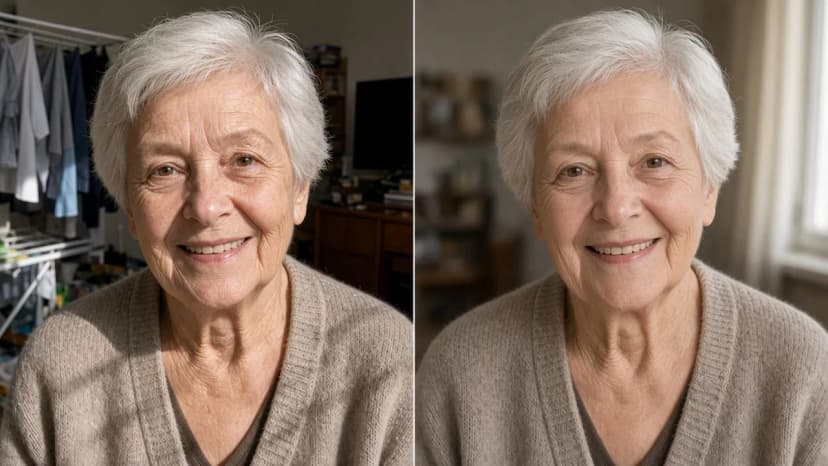
The best portrait of a grandmother often happens by accident. A name day, someone takes a phone photo by the window, she is laughing. On the screen it looks beautiful. Enlarged to 50 × 70 cm, you see everything the phone exaggerated: hard shadows from the window, noise in the dark areas, a drying rack of laundry behind her.
This article shows how to improve a portrait like that with respect for the face and the age, and then make it a gift or the centre of a photo gallery wall. A general description of the editor, the preview, the final version and credits is in the AI photo editor in Framky.
How much retouch is too much
A grandfather’s wrinkles are not a mistake in the photo. They are traces of laughter, sun on the allotment, and seventy years of life. A good retouch does not make someone younger. It only softens what the camera and the light added.
What is usually worth softening:
Hard shadows from a window or a flash, which deepen every line.
Shadows and bags under the eyes after a sleepless night or in poor light.
A momentary flush of the skin, shine on the forehead and the nose.
Noise and too much sharpening, which the phone adds automatically.
What should stay:
Expression lines, especially crow’s feet from a smile.
Moles, freckles, scars and grey hair.
The shape of the eyes, nose and mouth, the eye colour, the features of the face.
Glasses, if the person wears them every day.
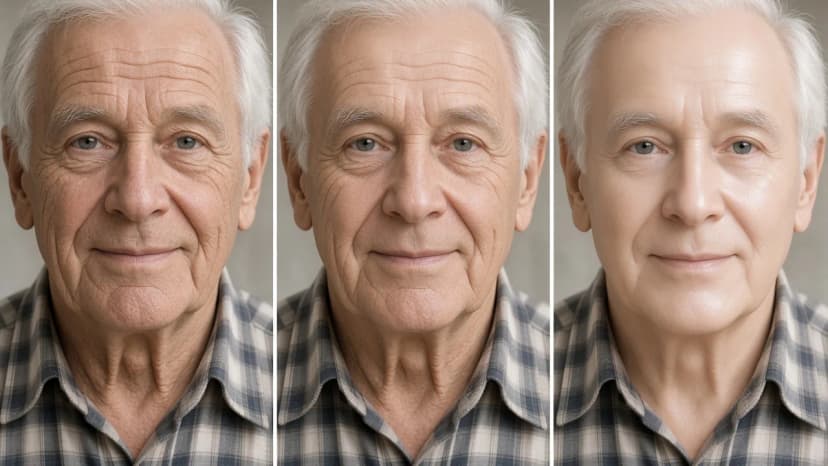
You recognise a “plastic” look by a few signs: skin with no pores, a waxy shine, a face smoother than the neck and the hands, a changed eye shape, a mole that disappeared. A simple test: show the edited version to someone in the family without warning. If they say “a nice photo of grandma”, the retouch is good. If they ask “what happened to her face?”, it was too much.
With old photos of grandparents from an album, the rule is the same, only more careful. A photo like that has the value of a document. If you improve it, focus on the light and the background, and leave the face alone: it is the face of a person you often can no longer ask.
Smoothing wrinkles: example instructions and strength
Upload the portrait to the project and, next to the photo, choose “Edit with AI”.
Describe the change. The editor asks: “What should change in the photo?”. Among the ready ideas is the instruction “Gently smooth wrinkles on faces”. You can click it, or write your own, more precise one.
Generate a preview. This usually takes about 10 seconds. It is low resolution and it is there so you can judge the idea.
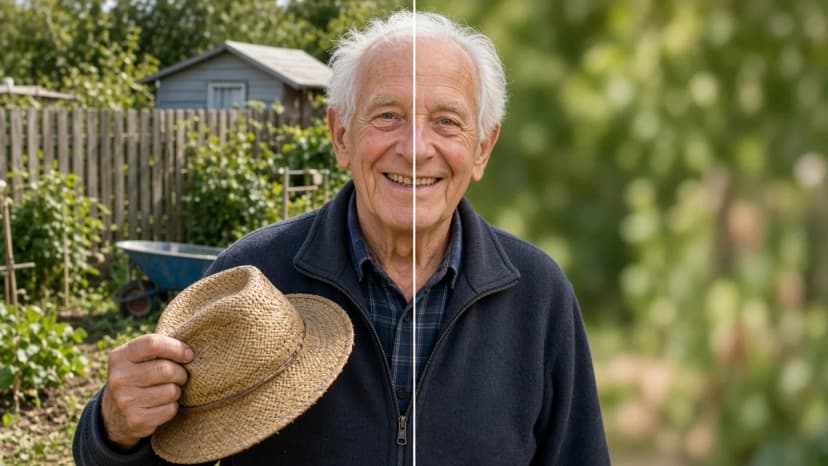
Compare it with the original on the before-and-after slider. The labels are “Original” and “Edited”. Look at the eyes and the mouth first, then at the skin texture on the cheeks.
Create the final version in full quality for print. Full quality can take up to 1 minute.
Choose “Use in frame”.
From the left: original, gentle retouch, retouch that is too strong. The middle version goes in the frame
You set the strength with words. Start with the weakest instruction. You can always try a stronger one later.
Strength
Instruction
When
Very light
Soften the hard shadows on the face, leave the wrinkles unchanged
A photo in hard sun or with a flash
Light
Gently smooth wrinkles on the face, keep the natural skin texture
Most portraits of grandparents and parents
Light, selected places
Gently reduce the shadows under the eyes, leave the rest of the face unchanged
A tired face after a long day
Medium
Smooth the wrinkles on the forehead, leave the smile lines around the eyes
A formal portrait, a photo for a diploma or an anniversary
Several people
Gently smooth wrinkles on the woman on the left, leave the man on the right unchanged
A photo of a couple, when one person asks for a retouch
Three rules that protect against a plastic look:
The word “gently” makes a difference. Without it, the effect is often stronger than you expect.
Say what should stay. Additions such as “keep the shape of the eyes and the mouth” or “leave the mole on the cheek” keep the editor in check.
Too strong? Go back to the original. An instruction like “undo some of the smoothing” on an edited version rarely brings natural skin back. It is better to click “Back to the original” and try a weaker instruction. Every version stays on the list, so you lose nothing.
Background blur: a portrait look from a phone photo
A phone has a wide-angle lens and a small sensor, so usually everything in the photo is sharp: the face, and behind it the television, the curtain and the calendar on the wall. A portrait lens leaves only the person sharp, and turns the background into a soft patch of colour. On the wall that makes a big difference, because the eye goes straight to the face.
“Blur the background, the person in the foreground should stay sharp”
Situation
Instruction
Clutter in the apartment behind them
Blur the background, the person in the foreground should stay sharp
A garden or an allotment
Gently blur the background, keep the greens, the face and the hands should stay sharp
A couple against a busy street
Blur the background behind the couple, both of them should stay sharp
A distracting object in the background
Remove the drying rack of laundry from the background on the right, leave the rest unchanged
A photo at the table
Blur the background and the plates on the table, the person in the foreground should stay sharp
When something in the background is clearly in the way, remove it first, and only then blur the background. More removal examples are in how to remove people from a photo background.
After the blur, enlarge a few places where the AI has to separate the person from the background:
Hair, especially grey and curly hair. Single strands should not disappear or merge into the background.
Glasses. The background visible through the lenses should be blurred too.
Ears, hands and shoulders. The edge should be soft, but without a bright outline.
Objects in the hands, for example a cup or flowers. Write it in the instruction if they should stay sharp.
Order matters: background first (removal, then blur), then a gentle face retouch, and the crop last. Make each next change with “Edit further from this version”. Before the final version, turn on “Show frame proportions” so you see which part of the photo will be in the frame.
A portrait as a gift in a frame
A portrait of a grandmother, grandfather or parents is one of the gifts that hang on the wall for years. When a photo gallery is a good gift, and when it misses, is described in a photo gallery as a gift. With portraits, a few more things come up:
Retouch for the recipient’s taste, not yours. Many older people prefer to look as they do every day. When in doubt, choose the lighter version.
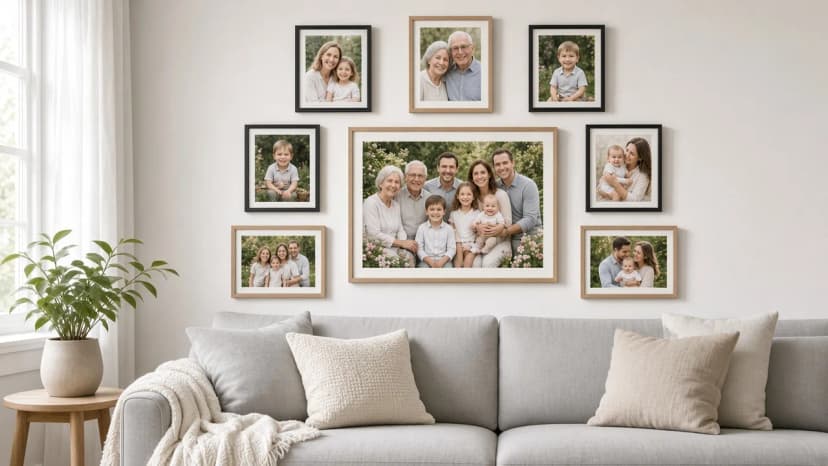
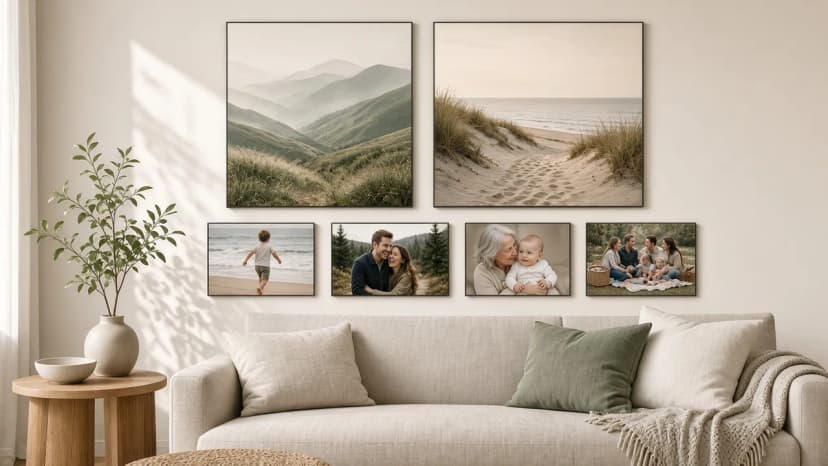
Format. A single portrait as the centre of a gallery looks best in a 50 × 70 cm frame, and smaller photos of 20 × 30 or 30 × 40 cm from different stages of life can hang around it.
Check the resolution before you edit. For 50 × 70 cm, aim for about 4000 pixels on the longer side. The editor will not add detail to a file that is too small. The details are in how much DPI you need for photo printing.
Consistency of old and new photos. When you combine a phone portrait with photos from an album, the instruction “Black-and-white mood of analogue film” helps. Then a portrait from last year and a wedding photo from fifty years ago look like one story.
Choose a layout in the photo gallery wall and upload the photos, with the portrait in the largest frame.
Next to the portrait, choose “Edit with AI”. First remove or blur the background, then gently smooth the wrinkles.
Compare the final version with the original, turn on “Show frame proportions”, and choose “Use in frame”.
Place the order. The set arrives ready to hang, with a 1:1 paper template and self-adhesive hangers, and you have 30 days to return it.
Keywords
remove wrinkles from a photosmooth wrinkles in a photoblur a photo backgroundai portrait retouchnatural photo retoucha portrait of grandparents in a framea portrait as a giftai photo editorphoto gallery wall
Framky Club
Claim a special discount on your first order
Sign up and we'll send you a code with a bigger discount than the shop offers — plus occasional inspiration for your photo gallery wall.
Someone blinked in a group photo? Open their eyes with one instruction in the Framky AI editor, check the result before print, and make that photo the centre of a family gallery in a 50 × 70 cm frame.
How many artist photographs, and how many of your own? Ratios of 2 out of 6 and 3 out of 9, matching by colour and place, black and white as the glue, and ready Layered Moments and Stepped Vista layouts from Framky Artists.
No good photos for the wall? Photographs by independent artists from Framky Artists for the living room, bedroom, office and entryway: how many frames, which categories, and how to hang a gallery without drilling.